

Results and Data Export
Post-processing
Section titled “Post-processing”After a record stops, the Console post-processes it automatically in these steps: Stop and finish up → Confirm identity tracks → Compute features → Done. The Results tab of the record page shows the progress, then the results once processing is complete.
The Results Page
Section titled “The Results Page”When post-processing is complete, the Results tab shows the results of the record (Figure “Record results”).
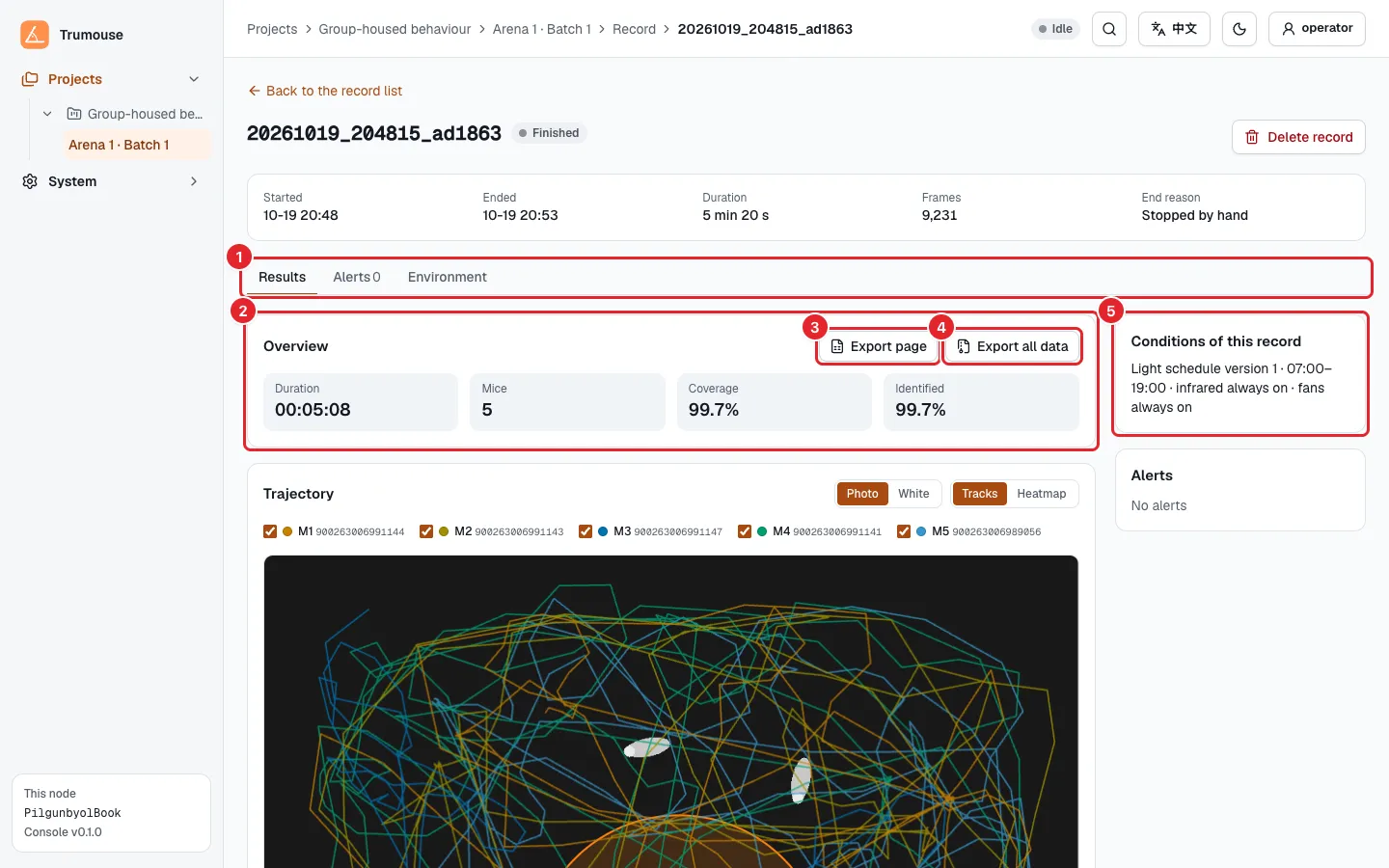
Figure: Record results
- Record contents tabs: Results, Alerts and Environment.
- Overview: see Table “Results overview” for what each value means. Hovering over a number shows its meaning.
- Export page; see Exporting Data.
- Export all data; see Exporting Data.
- Conditions of this record: the light schedule the record used. An alert summary is shown below it.
Table: Results overview
| Metric | Meaning |
|---|---|
| Duration | Time from the start to the end of this record |
| Mice | Number of mice analyzed in this record |
| Coverage | Share of the record in which each mouse has a reliable position (averaged over the mice); higher means more complete tracks and metrics |
| Identified | Share of frames in which a mouse’s identity is confirmed by RFID (averaged over the mice); higher means the results are less likely to mix mice up |
If the record was interrupted unexpectedly (for example, by a power cut or a program crash), a note above the results states that the results cover only the part before the interruption, and the overview is marked Partial.
From top to bottom, the results are: trajectory and mice, timeline, regions, per-mouse metrics, pair relations and dominance, events, and data quality · card reads.
Trajectory
Section titled “Trajectory”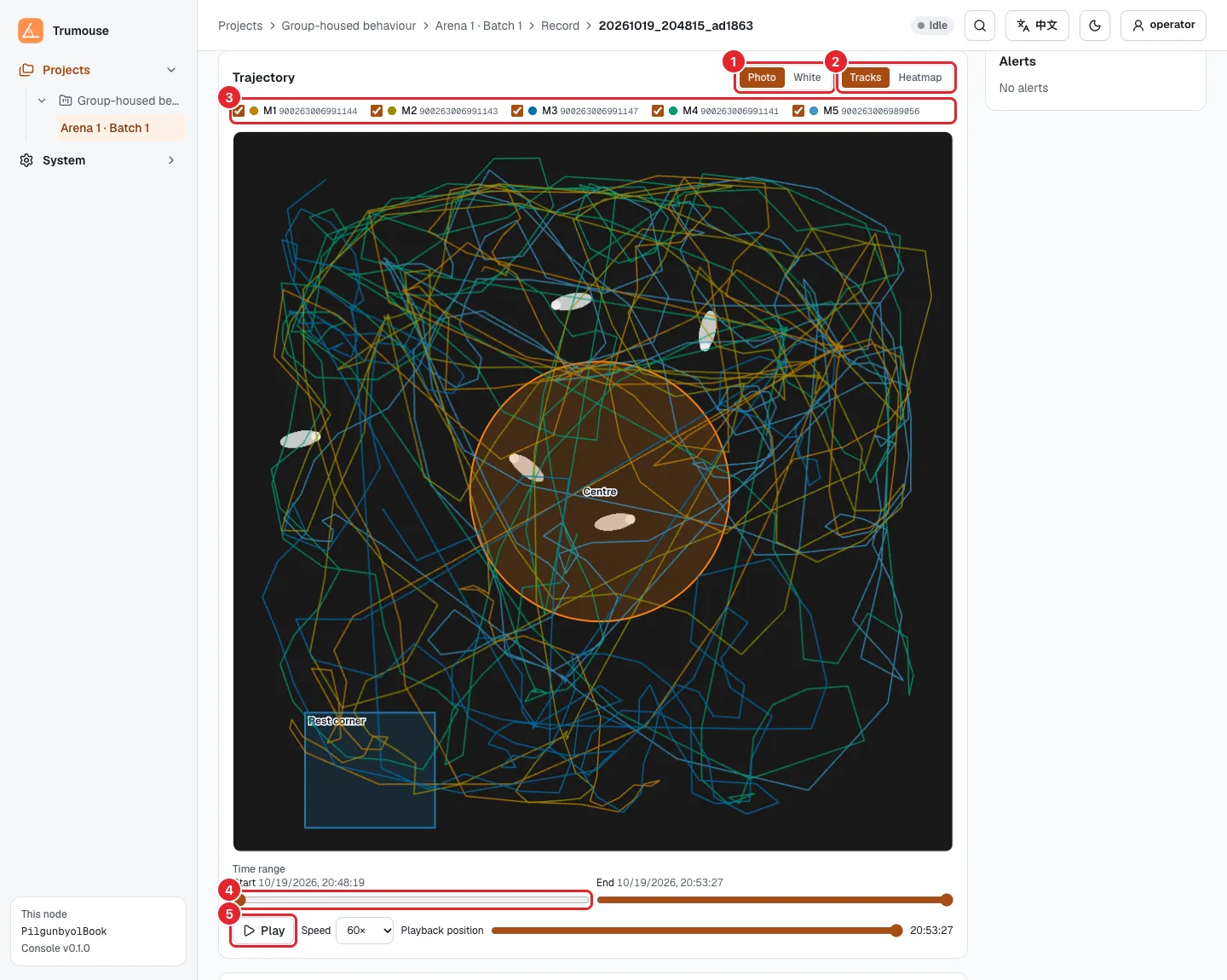
Figure: Trajectory
- Backdrop: Photo (the arena photo) or White.
- Display: Tracks or Heatmap.
- Shown mice: tick the mice to display.
- Time range: drag the start and end sliders to view part of the record; the mouse cards beside it and the region statistics below are then summed over the selected range. Click Whole record to return to the full record.
- Play: replays the tracks over time at an adjustable speed.
Per-mouse Metrics
Section titled “Per-mouse Metrics”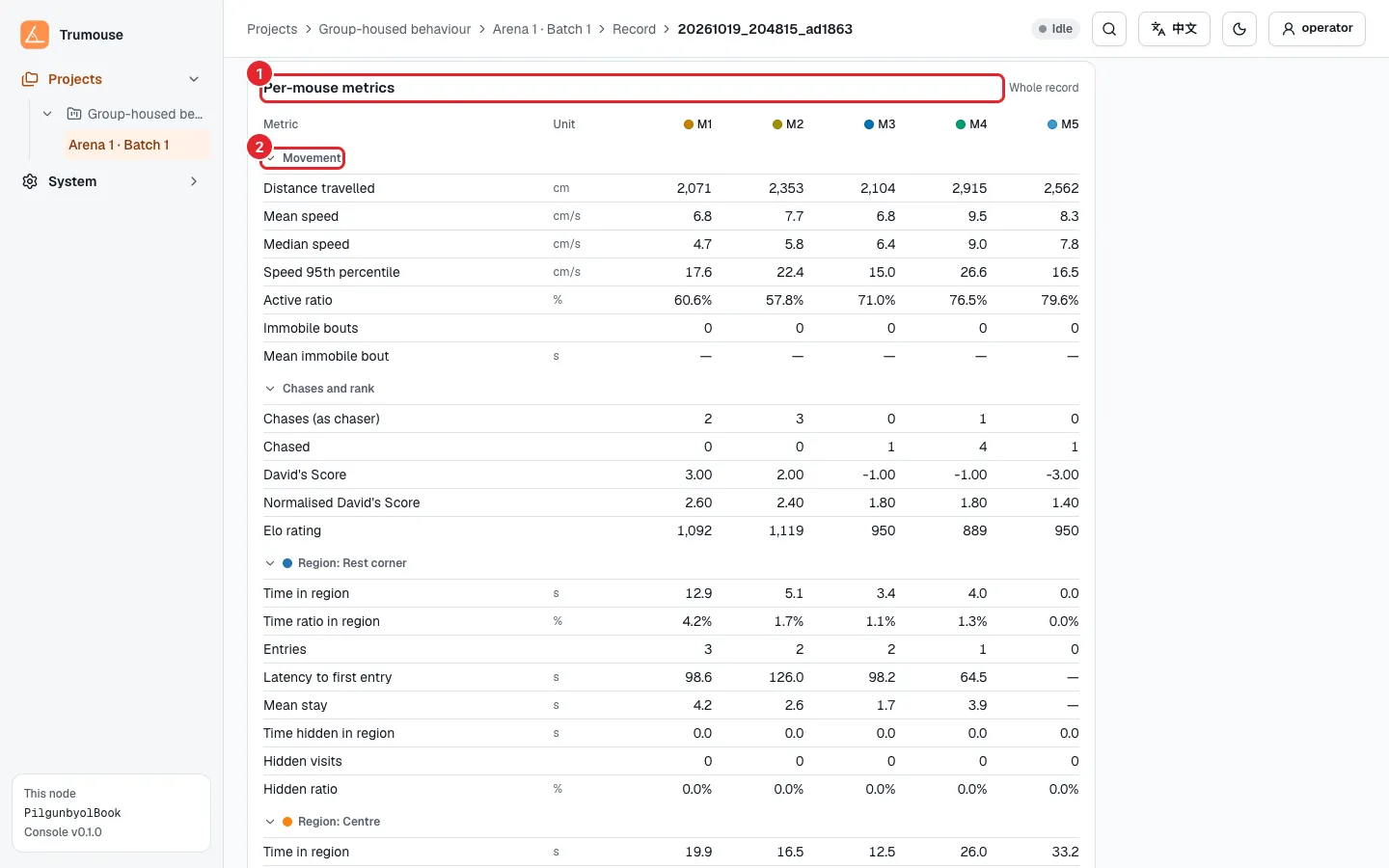
Figure: Per-mouse metrics
- Per-mouse metrics: one column per mouse and one row per metric. The table always covers the whole record; the selected time range does not apply.
- Metric groups: movement, chases and rank, each region, RFID and data quality. Click a group name to expand or collapse it.
Exporting Data
Section titled “Exporting Data”Table: Exporting results
| Button | Content | File |
|---|---|---|
| Export page | What the results page shows, as an Excel workbook with one sheet per panel; the summary sheet includes how the record ended | record-<record ID>-page.xlsx |
| Export all data | All data of the record as CSV files in a ZIP archive: every feature, 1 Hz tracks, events, timeline, regions and environment data, for your own analysis | record-<record ID>-data.zip |
Alerts and Environment
Section titled “Alerts and Environment”The other two Record contents tabs are shown in Figure “Alerts” and Figure “Environment”.
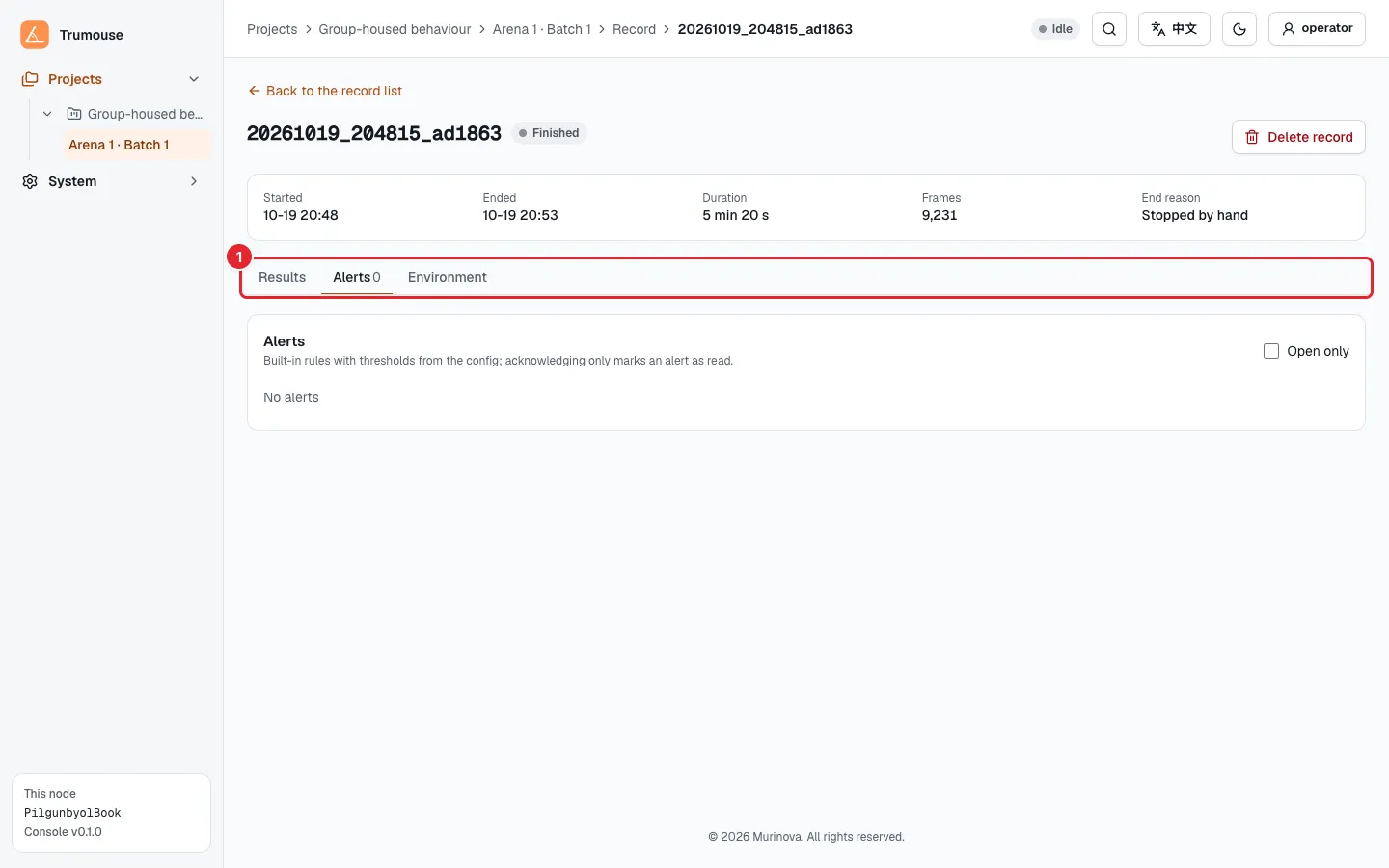
Figure: Alerts
- Alerts: the record’s alert list. Tick Open only to show only alerts that have not recovered. Problems that the results page does not report as failures are listed here.
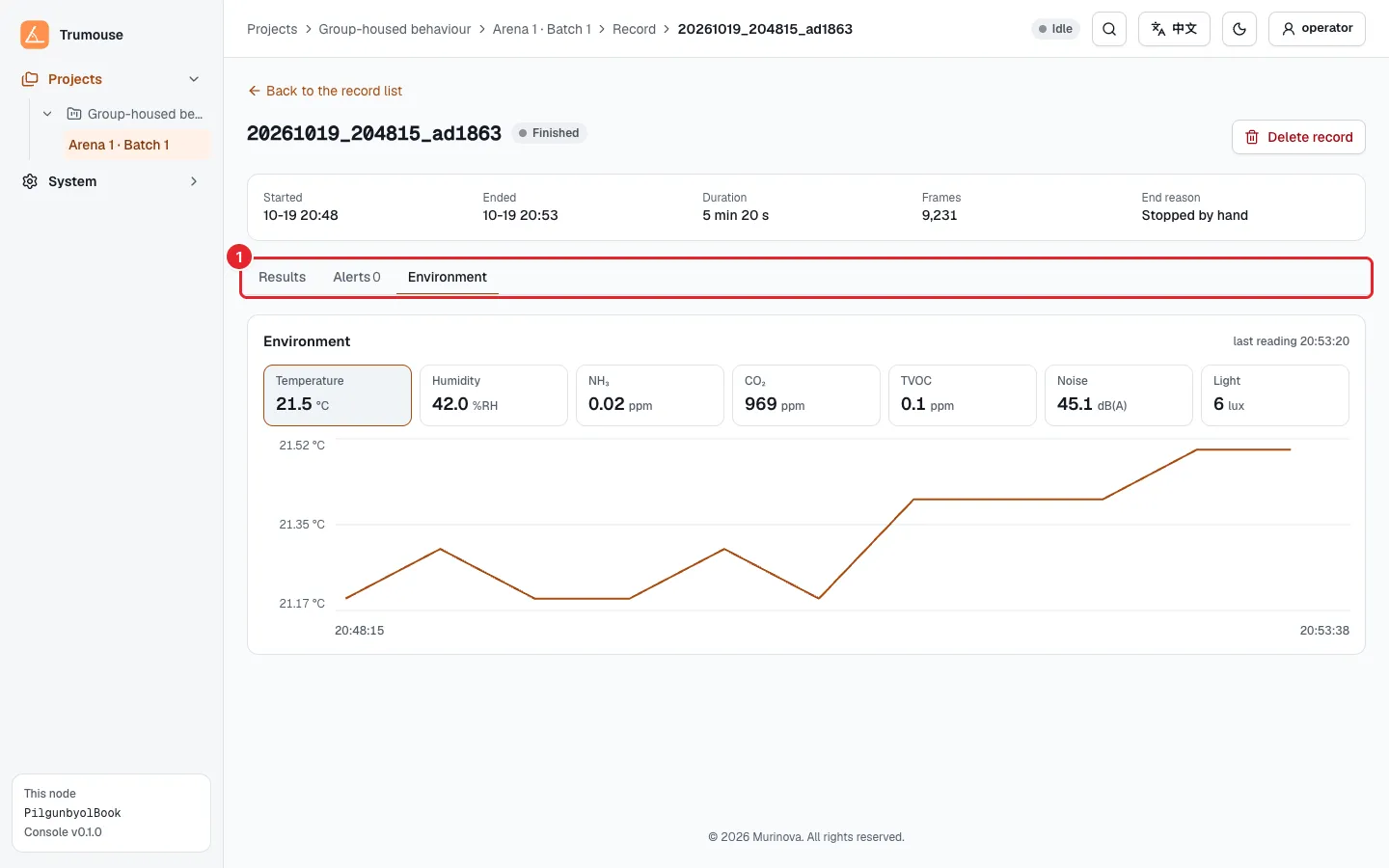
Figure: Environment
- Environment: temperature, humidity, ammonia, carbon dioxide, TVOC, noise and illuminance. Click a value card at the top to switch the curve below.
The Record List and the Next Record
Section titled “The Record List and the Next Record”Go back to the experiment’s Records tab (Figure “Record list”). Each row of the record list is one record: record ID, start time, duration, frames, mice, state, end reason and actions.
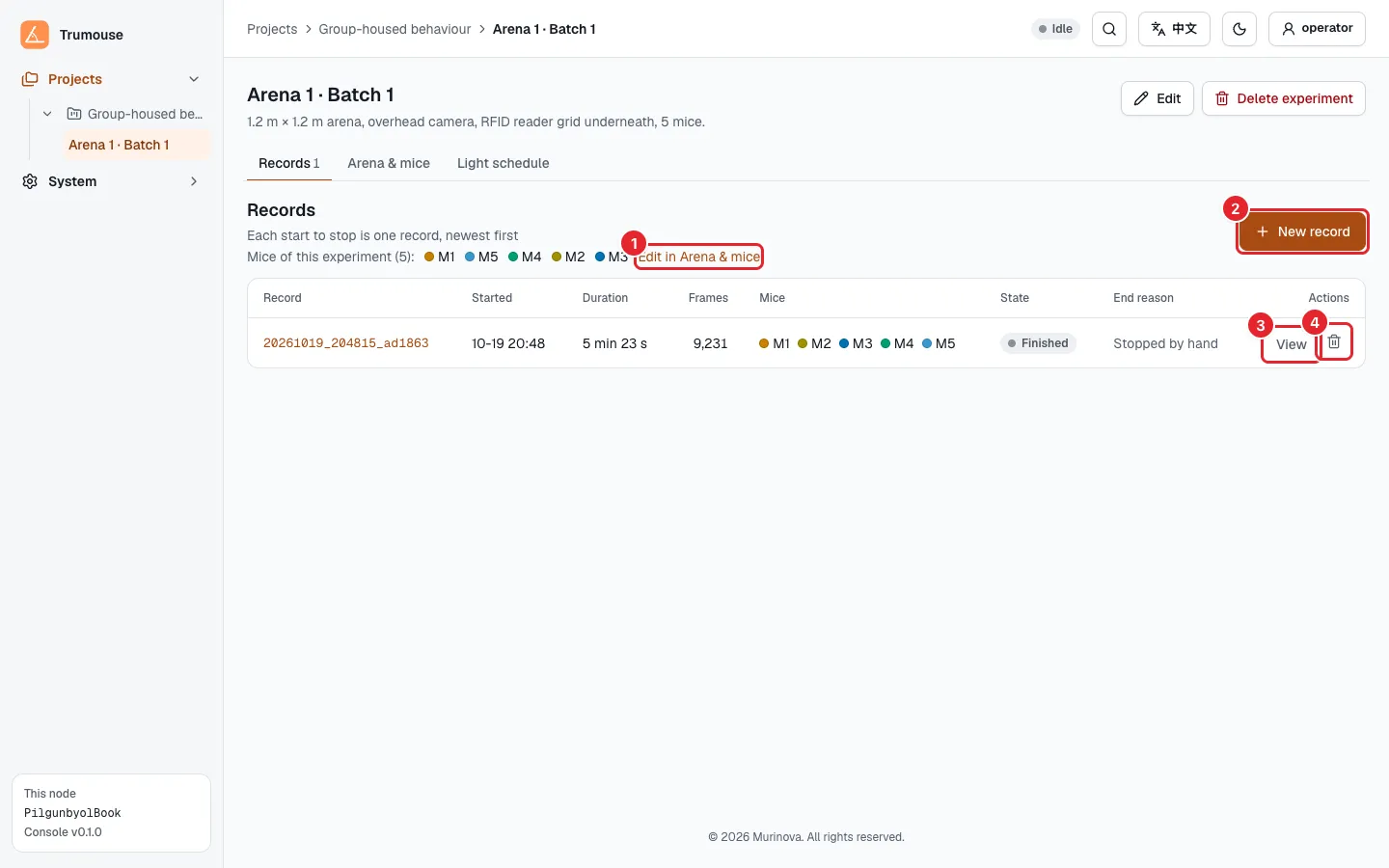
Figure: Record list
- The experiment’s mice; click Edit in Arena & mice to change the roster.
- New record: starts the next record; available only when no record is in progress.
- View: opens the record.
- Delete (bin icon); see Deleting Data.
Table: Record end reasons
| End reason | Meaning |
|---|---|
| Stopped on schedule | A duration was set and the record stopped when it elapsed |
| Stopped by hand | Stop was clicked |
| Interrupted unexpectedly | The record was cut short, for example by a power cut or a program crash |
| Did not start | The record failed to start |
If a force stop skipped the analysis of some frames, “some frames not analysed” is appended to the end reason. Hovering over the end reason shows the original message; include it when reporting a problem.